

Home is your starting point
When you log in to app.apollospace.ai, the Home screen greets you with a time-of-day personalized message and three clear areas:- Create — new primitives in one click (Folder, Board, Document, CRM)
- Widgets — consolidated view of your tasks, finances, calendar, and agent
- Sidebar — navigation by surface (Tasks, Chats, Integrations, Routines, Folders, Archived)
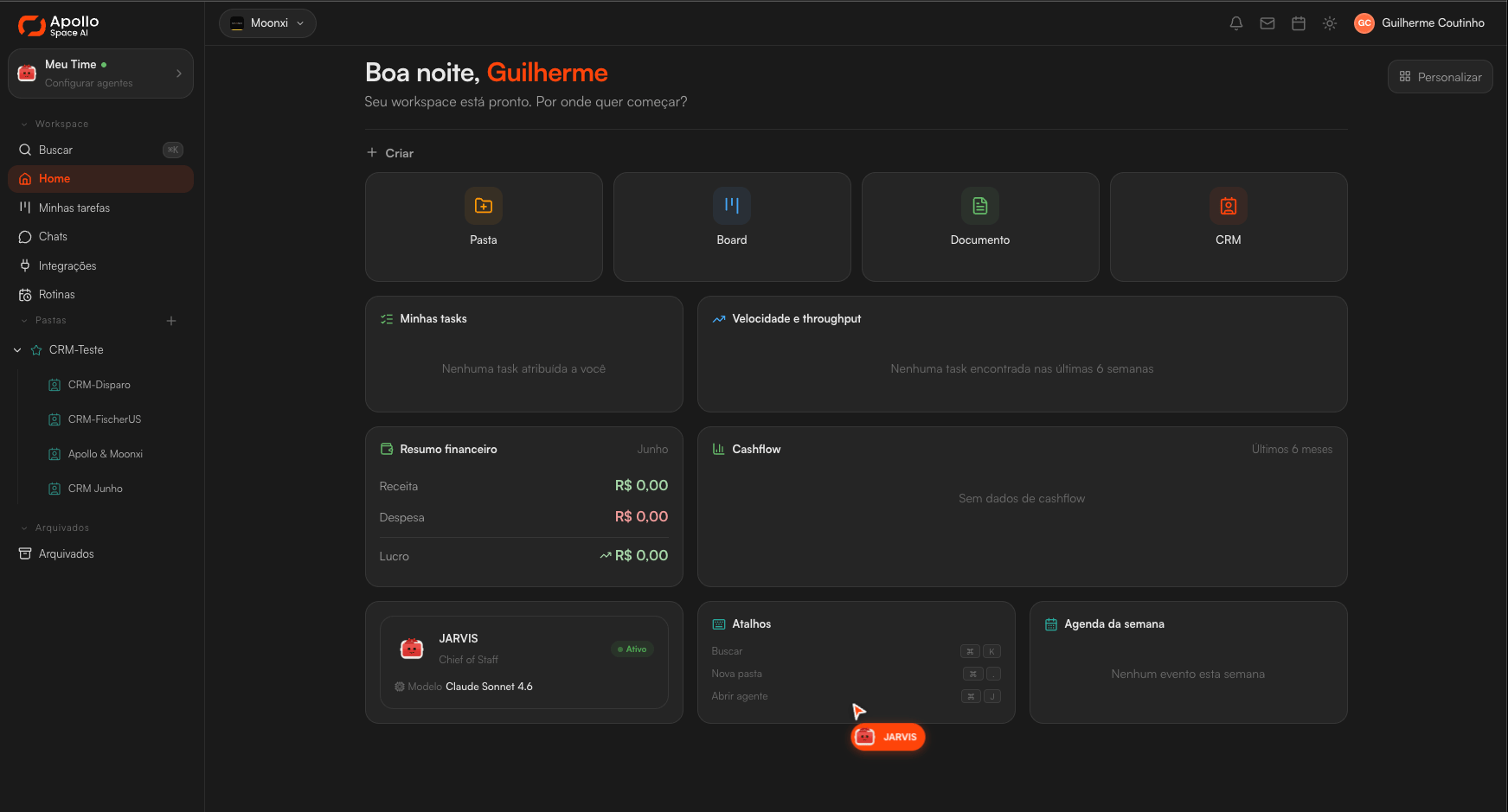
ApolloSpace AI Home — greeting, Create (4 primitives), widgets, and sidebar with Routines + Integrations + Folders
“Create” block — 4 primitives
At the top of Home, 4 cards invite you to create:Folder
A container for organizing boards, documents, and pipelines in your
operation. Supports hierarchy (subfolders) + saved filters.
Board
Kanban with customizable columns. Each column is a status; each
card is a task with description, assignee, due date, and attachments.
Document
Rich-text editor (markdown + WYSIWYG). Inline embeds for images,
lists, tables, and mentions of leads/agents/members.
CRM
New lead pipeline + activities. See
Native CRM for full details.
Home Widgets
Below “Create,” the widget area consolidates what matters:My tasks
Tasks assigned to you in the last 6 weeks. Clicking a task
opens the board it lives in.
Velocity and throughput
Team productivity metrics (tasks closed per week,
average time in each column). Useful for retros and planning.
Financial summary (month)
Revenue, Expenses, and Profit for the current month — aggregated in
the org’s native currency. Most useful for teams that track finances
in ApolloSpace AI (plans with finance active).
Cashflow
A 6-month time series — visualizes trends over time.
Chief of Staff agent
Your org’s Chief of Staff (each org names their own — e.g., “JARVIS”,
“Athena”, “Tina”). Shows status (active / paused) and opens the chat
directly on click.
Shortcuts
Quick keyboard commands:
⌘K— Search (any resource in the org)⌘N— New folder⌘J— Open the Chief of Staff in chat
Week schedule
Integrated events (Google Calendar / Outlook via Composio) +
task deadlines for the current week.
Sidebar — primary navigation
The header
At the top of the screen, left to right:- Organization selector — when you belong to more than one,
switch between them here (URL updates to
/{slug}) - Notifications (bell) — recent org events (pending approvals, WhatsApp replies, triggered caps)
- Inbox (envelope) — direct messages + forwarded emails
- Calendar — shortcut to the week schedule
- Light/dark toggle — visual preference (persists per user)
- User avatar — profile menu, personal settings, sign out
How Home behaves by role
Keyboard shortcuts
Work on any screen in ApolloSpace AI:On Linux/Windows, shortcuts use
Ctrl instead of ⌘ (Cmd on Mac).Getting started
1
Open the Chief of Staff
Use
⌘J or click the agent card on Home. Send a concrete request
to get a feel for its tone.Expected result: chat opens with the persona configured for
your org.2
Create your first folder
Use
⌘N or click Create → Folder. Use it to organize
the project’s boards and documents.Expected result: new folder appears in the sidebar +
success notification in the corner.3
Connect an integration
Integrations in the sidebar → choose WhatsApp / Composio /
Tavily / Apify. See
Set up WhatsApp or
Composio.
4
Invite your team
Settings → Members → Invite. See
Invite your team.
Need help?
Technical documentation
Concept details: agents, pipelines, Stars, multi-tenant.
Direct support
Email: support@apollospace.ai. Response during business hours.
Next steps
Settings
Where to manage members, integrations, agents, and billing.
Quickstart
10-minute tutorial from zero to your first agent.